
Server Manager
Run your DayZ or Rust server from your own PC.
The Server Manager installs DayZ or Rust on a Windows PC you control, then starts, restarts, updates and backs it up for you, with the window closed.
From an empty PC to a server players can join
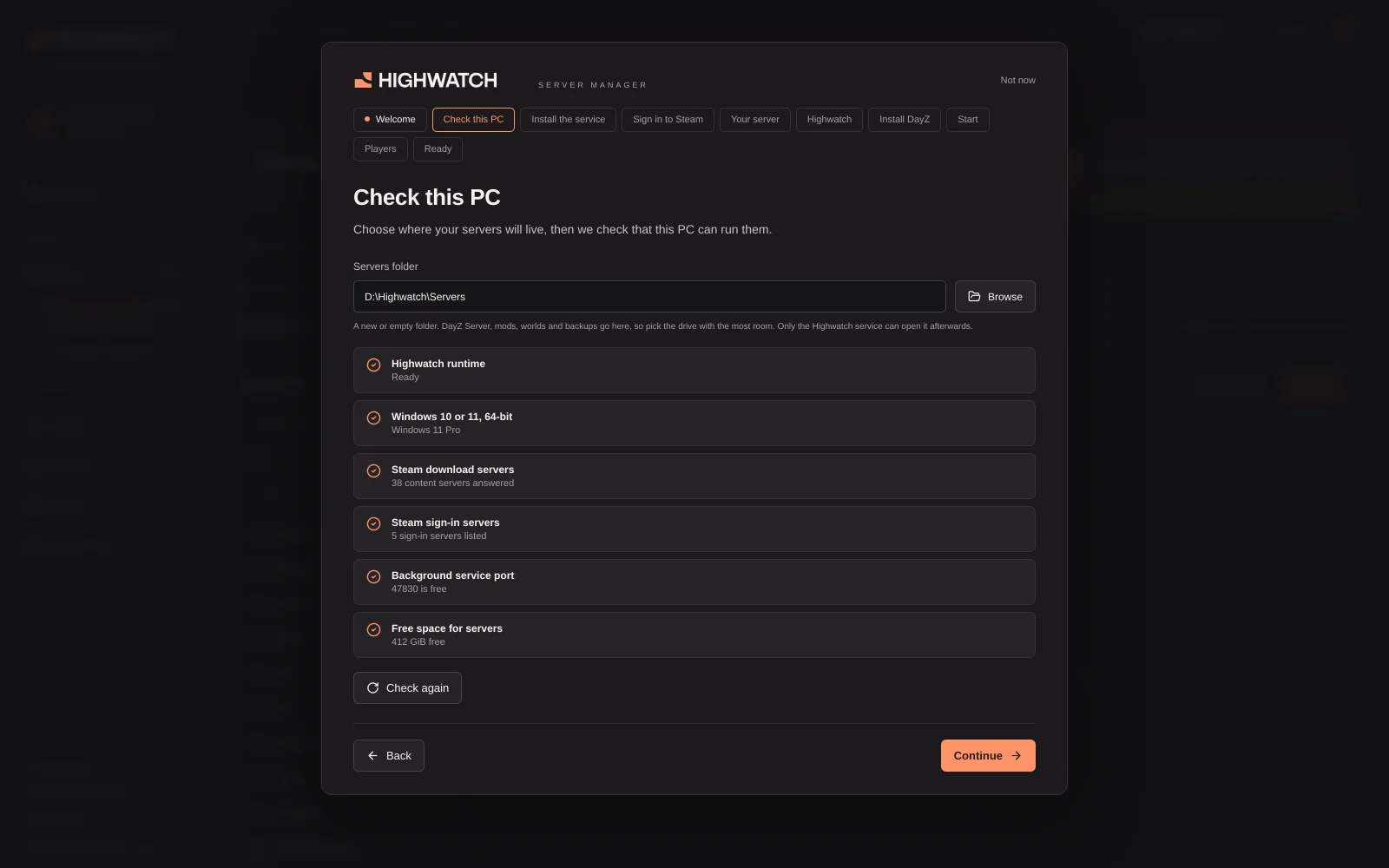
The setup guide takes about fifteen minutes, most of it the DayZ download.
- It checks the PC and installs a background service with one Windows prompt, along with the Microsoft runtimes DayZ needs.
- You sign in to Steam by scanning a QR code with the Steam Mobile App. Highwatch never sees your Steam password.
- You choose DayZ or Rust, name your first server and pick a map: Chernarus, Livonia, Sakhal or Nasdara on DayZ. Your Highwatch account sets it up with the @Highwatch mod as a server mod, so the Server Desk sees it straight away.
- DayZ Server and your mods download, and the server starts.
- It opens the Windows firewall, asks your router to forward the ports, and checks from the internet that players can reach you. If the router refuses, it names the ports to forward by hand.
Every server at a glance
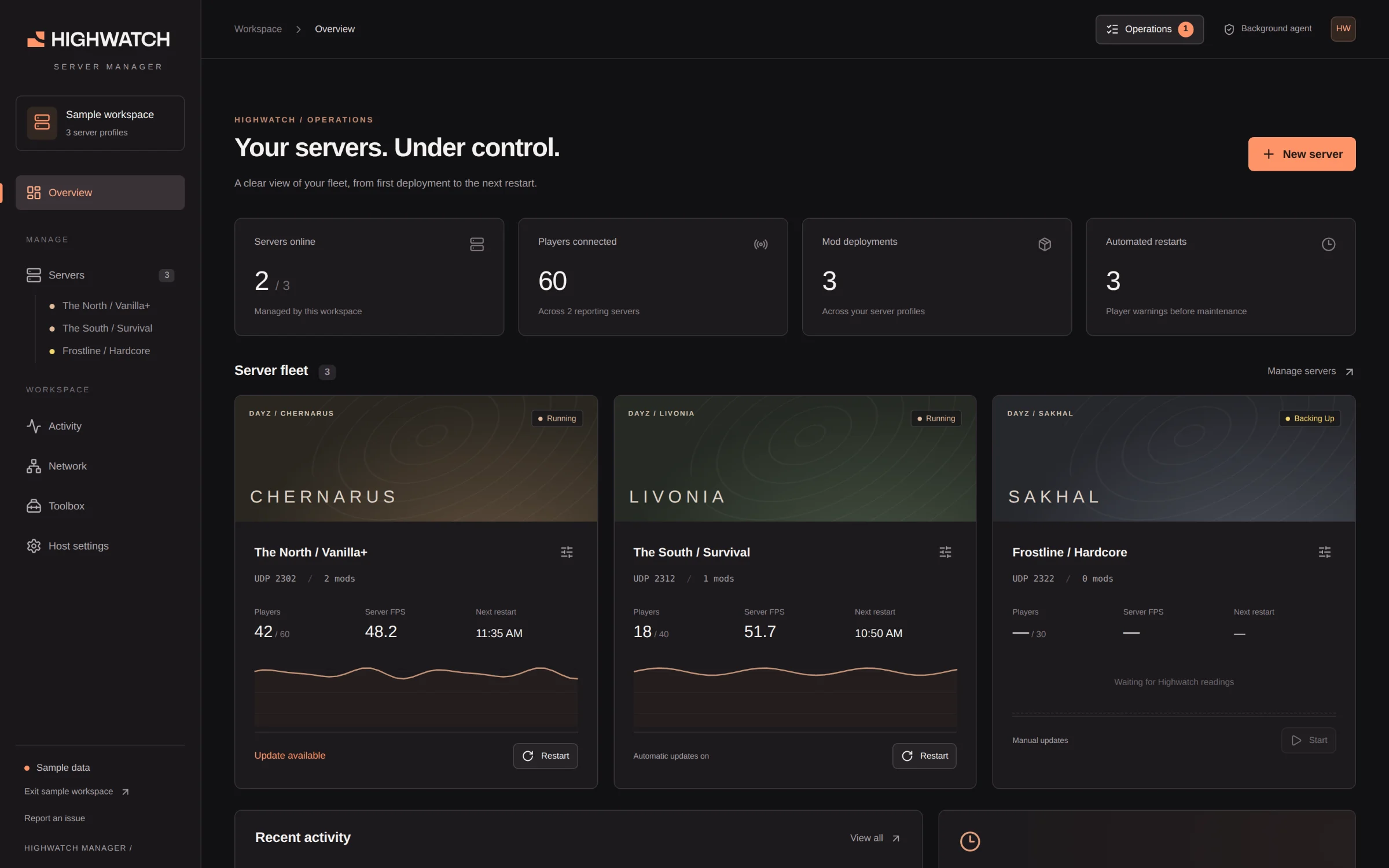
Run several servers on one PC, each with its own installation and its own ports. Each card shows players, server FPS, the next restart and whether Steam has an update. Fleet actions restart, update or message several servers at once, and a failure on one never stops the others.
Templates save a server's map, mods and automation under a name, so the next server starts the same way. Already have a server folder? Import it and the original is left untouched.
Rust servers, beside your DayZ ones
New server asks DayZ or Rust. Pick Procedural Map, Barren, Hapis Island, Craggy Island, Savas Island or a custom map link, a world size, a seed, a player limit and Oxide or Carbon, or import an existing Rust folder with its world and identity kept.
- Install and update RustDedicated without a Steam account, on the public, staging or aux01 branch. Oxide or Carbon is put back after every Rust download, and your world, configs and plugins stay.
- Update hold, on by default: a Rust update your framework has not caught up with waits, so your plugins keep working, and Activity says why.
- Plugins: browse every plugin on uMod and Codefling, install a batch of uMod plugins in one click without a restart, edit configs with a JSON check, review or auto-install updates and roll back. Codefling plugins open on Codefling.
- Wipes: map, blueprint or both, by hand, on your schedule or with the forced wipe (first Thursday, 19:00 London), with the next map picked per wipe.
- server.cfg as a form, owners and moderators by SteamID64, and Rust metrics from the Highwatch plugin. Linking installs the plugin without a restart.
Each Rust server gets its own block of ports from 28015. Game, query and Rust+ are opened to players; RCon stays on the host. See Highwatch for Rust.
Restart the whole fleet, one server at a time
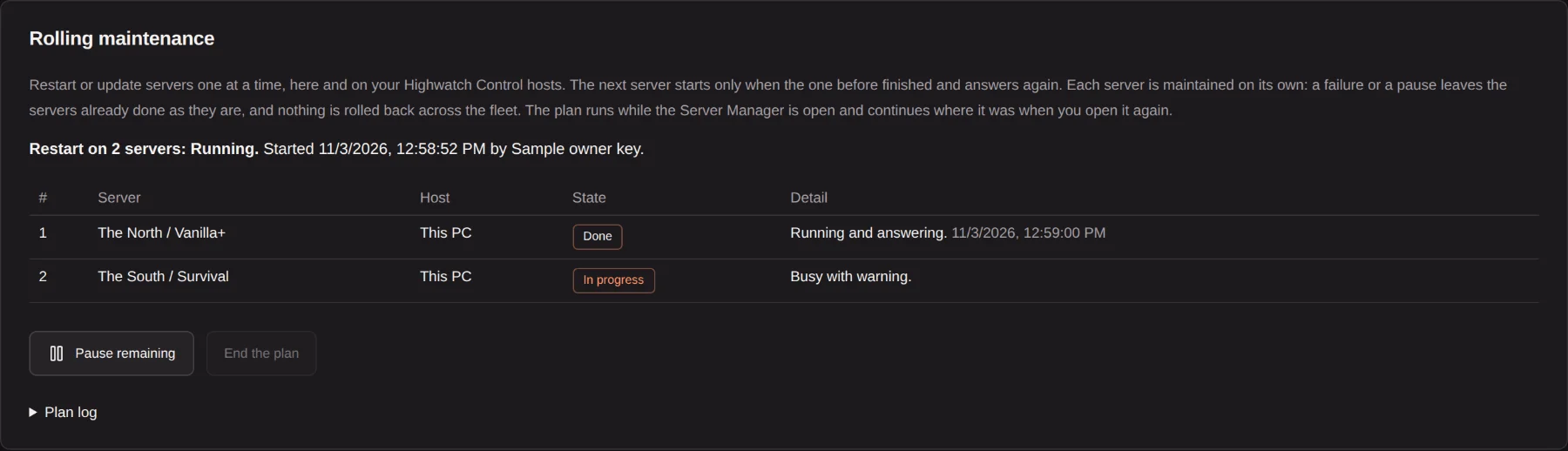
Rolling maintenance restarts or updates a list of servers one after another, on this PC and on your other game PCs. The next server only goes down when the one before has finished and answers again: the process, the Steam query, RCon and the mod feed. A failure pauses the rest, and nothing is rolled back across the fleet.
A plan can wait for each server to have few players, up to a deadline. The preview suggests a quiet period from that server's measured player history, and suggests nothing with under three days of it.
Try changes on a test copy first
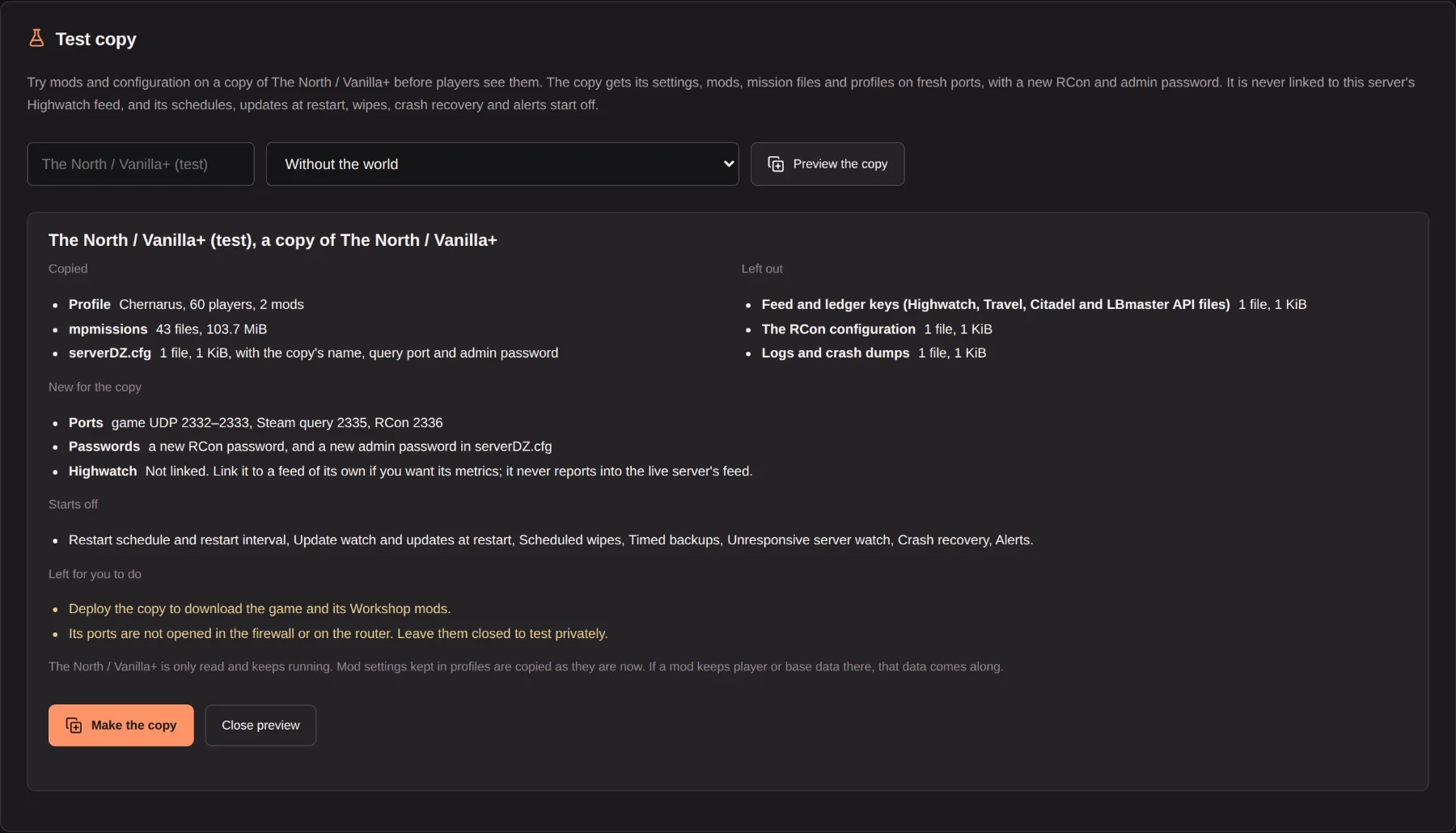
A test copy is a new server made from one of yours, with its settings, mods, mission files and profiles, on fresh ports with new passwords. The world comes along only from a backup you pick. Highwatch keys, the RCon configuration and logs never come along, the copy is not linked to Highwatch, and its schedules, wipes, crash recovery and alerts start off. Try a mod there, then make the change on the live server once it works.
Workshop mods without the copy and paste
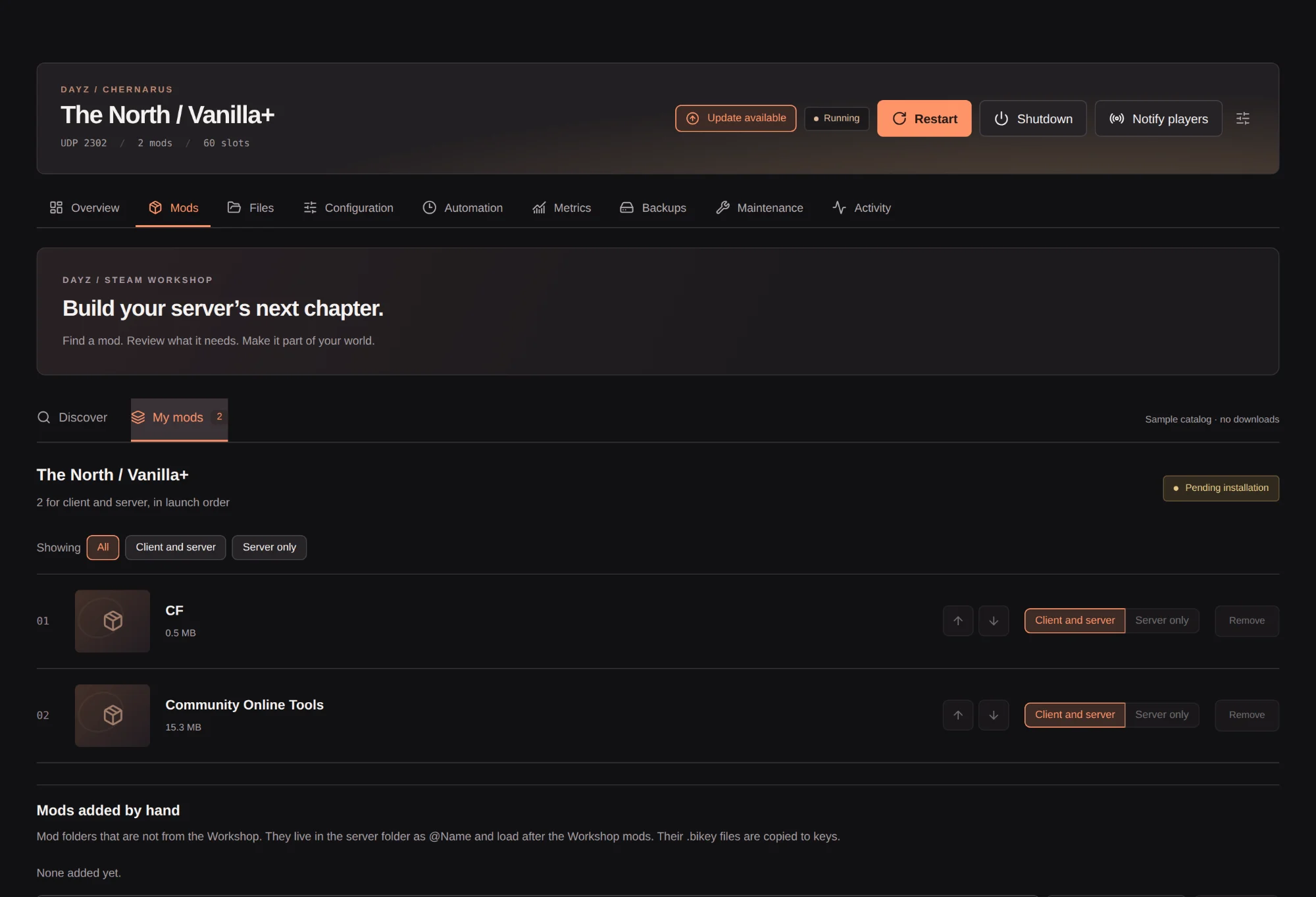
Search the Steam Workshop by name, add a mod with everything it needs, and set the load order. A switch per mod loads it on the client and server, or on the server only so players never download it. Mod folders that are not on the Workshop can be added by hand, with their keys.
Installs go to a staging copy first and show which mod they are on and how much is downloaded. Your live server only switches over when everything has arrived.
Restarts, notices and updates on a schedule
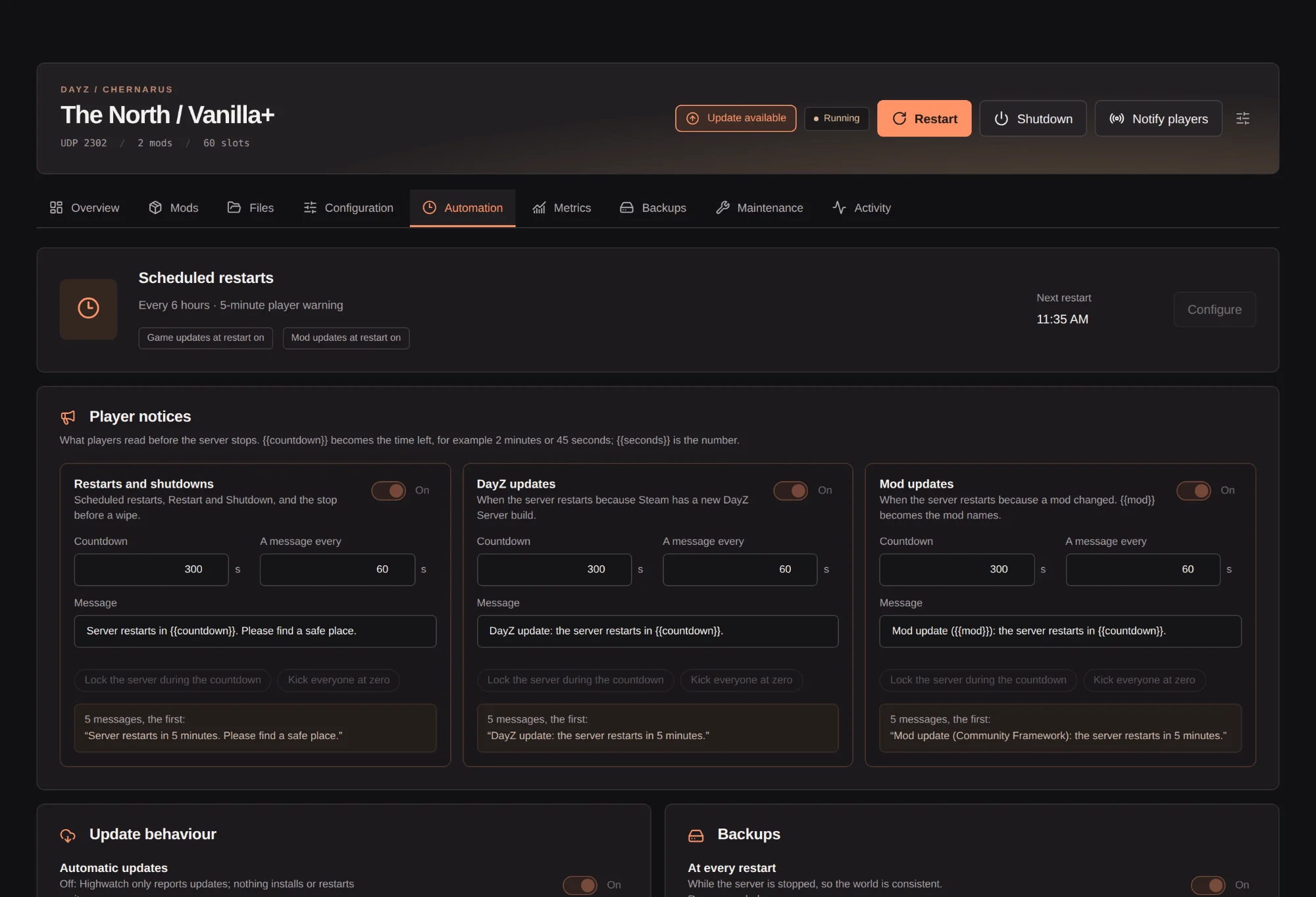
- Scheduled restarts every few hours or at fixed times, with a countdown players can read and optional lock and kick at zero.
- Updates are found on Steam every six hours. Install them at the next restart, or as soon as they land, each with its own player notice.
- Crash recovery starts a crashed server again, and restart when frozen catches one that stopped answering.
- Log rotation, process priority and CPU cores, and scheduled wipes of the world, the characters or both.
Schedules run in the background service, so they keep going with the app closed.
Backups of what is yours
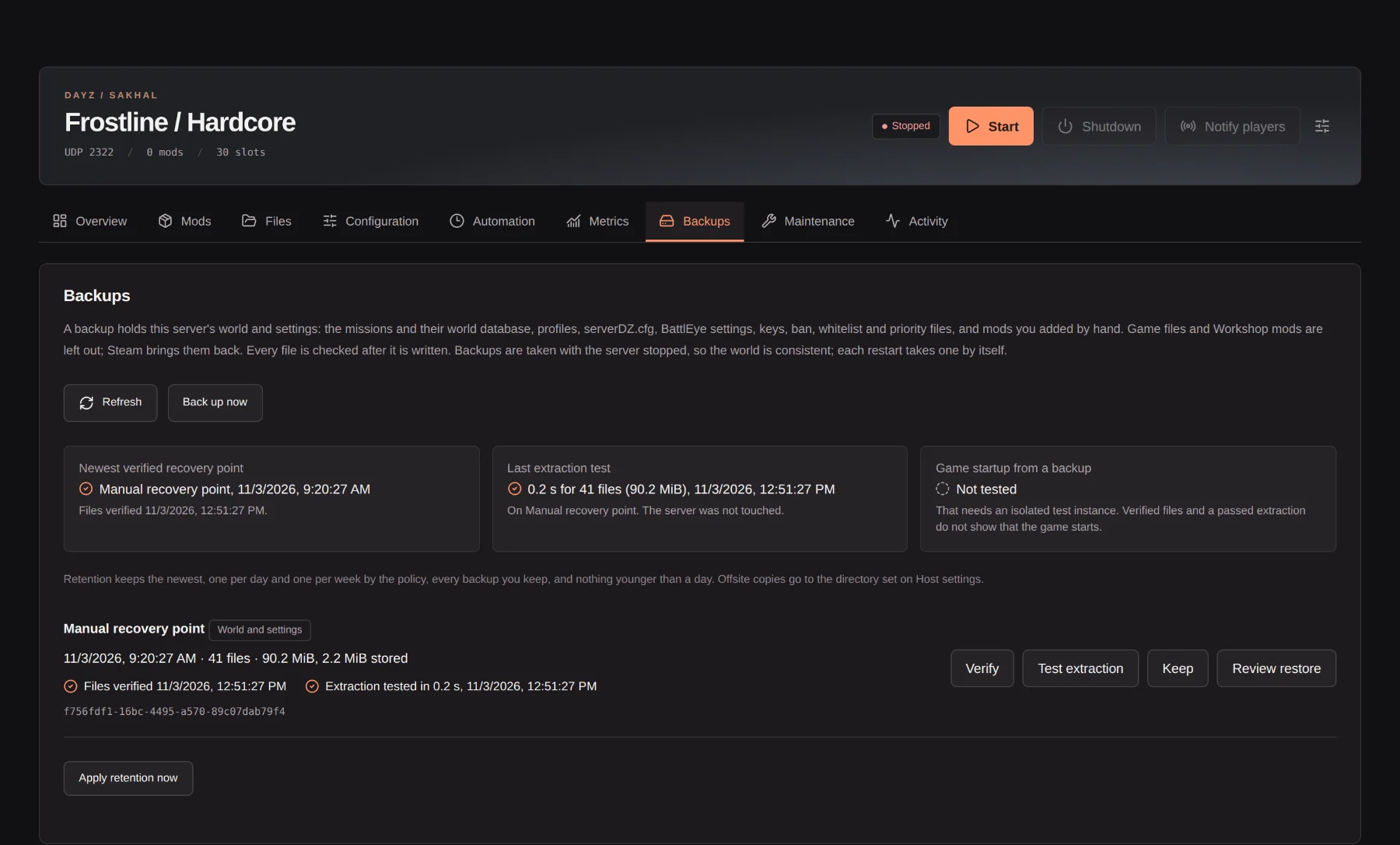
A backup holds the world and characters, profiles, serverDZ.cfg, BattlEye settings, keys, the ban, whitelist and priority files, and mods you added by hand. Game files and Workshop mods are left out because Steam brings them back, so backups are small and quick. On our test server one went from more than 7 GB to 166 MB.
Backups run at every restart, before updates and restores, on a timer, or when you ask. Each one can be verified and kept, and a recovery drill unpacks it to a separate folder to prove it extracts, without touching the server. An offsite folder gets a verified copy of every backup.
A restore shows exactly which files it will put back, add and remove before anything happens, and is refused if the server changed since that review. The current world is backed up first, so a restore can be undone.
serverDZ.cfg and your mission files
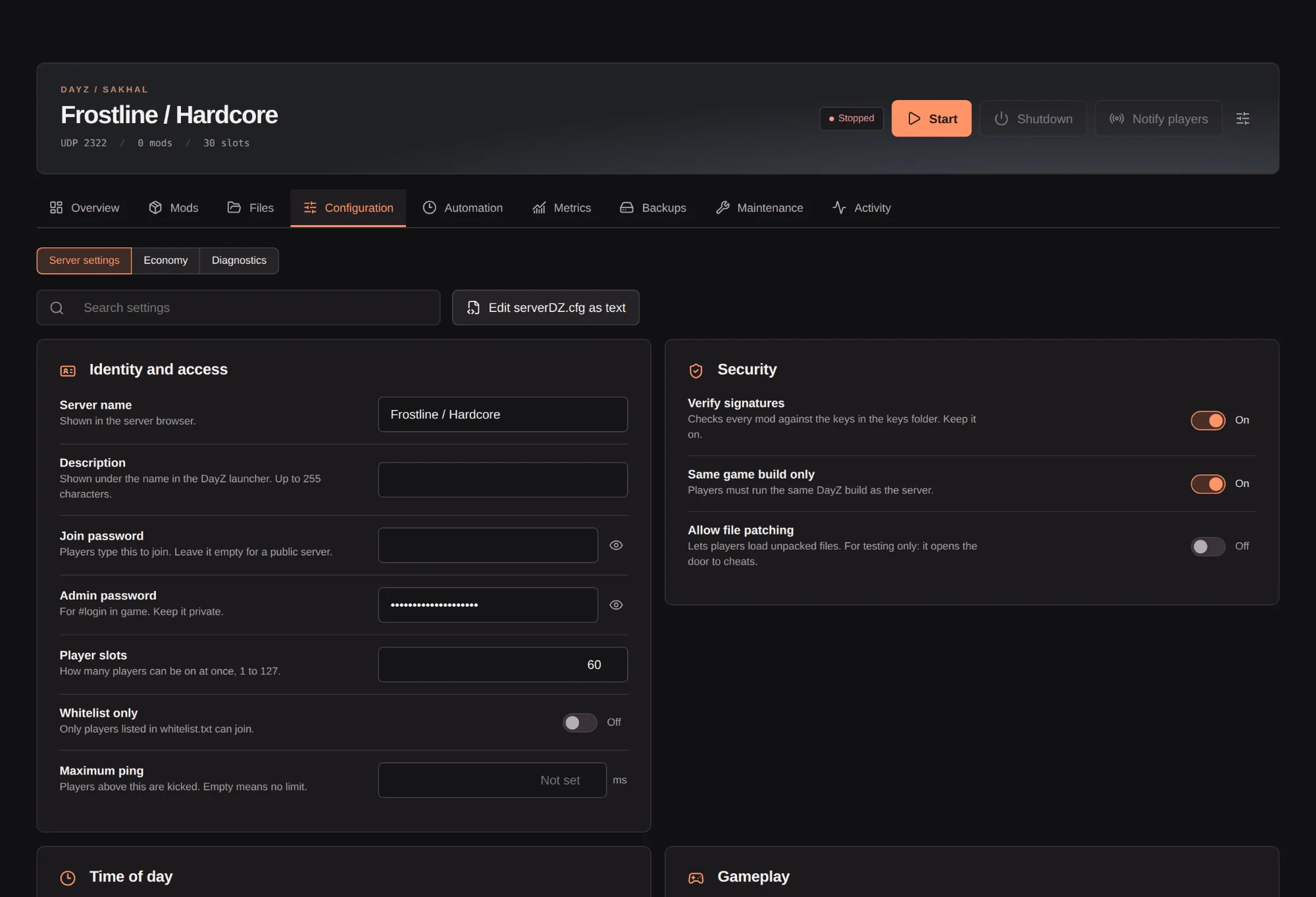
The main server settings are a form: grouped, searchable, each with a line on what it does, including DayZ 1.30's third person setting. One save bar lists what changed and writes only those keys, with a backup of the old file.
types.xml and the other economy files open as a spreadsheet with categories and sorting, and a code editor with syntax checks handles every other file. Every save keeps the previous version.
The Files tab makes new folders and takes uploads from your computer, up to 12 MB a file, here or through Highwatch Control. An existing file is replaced only after you confirm, and its old content is kept.
Know it is set up right, and when it drifts
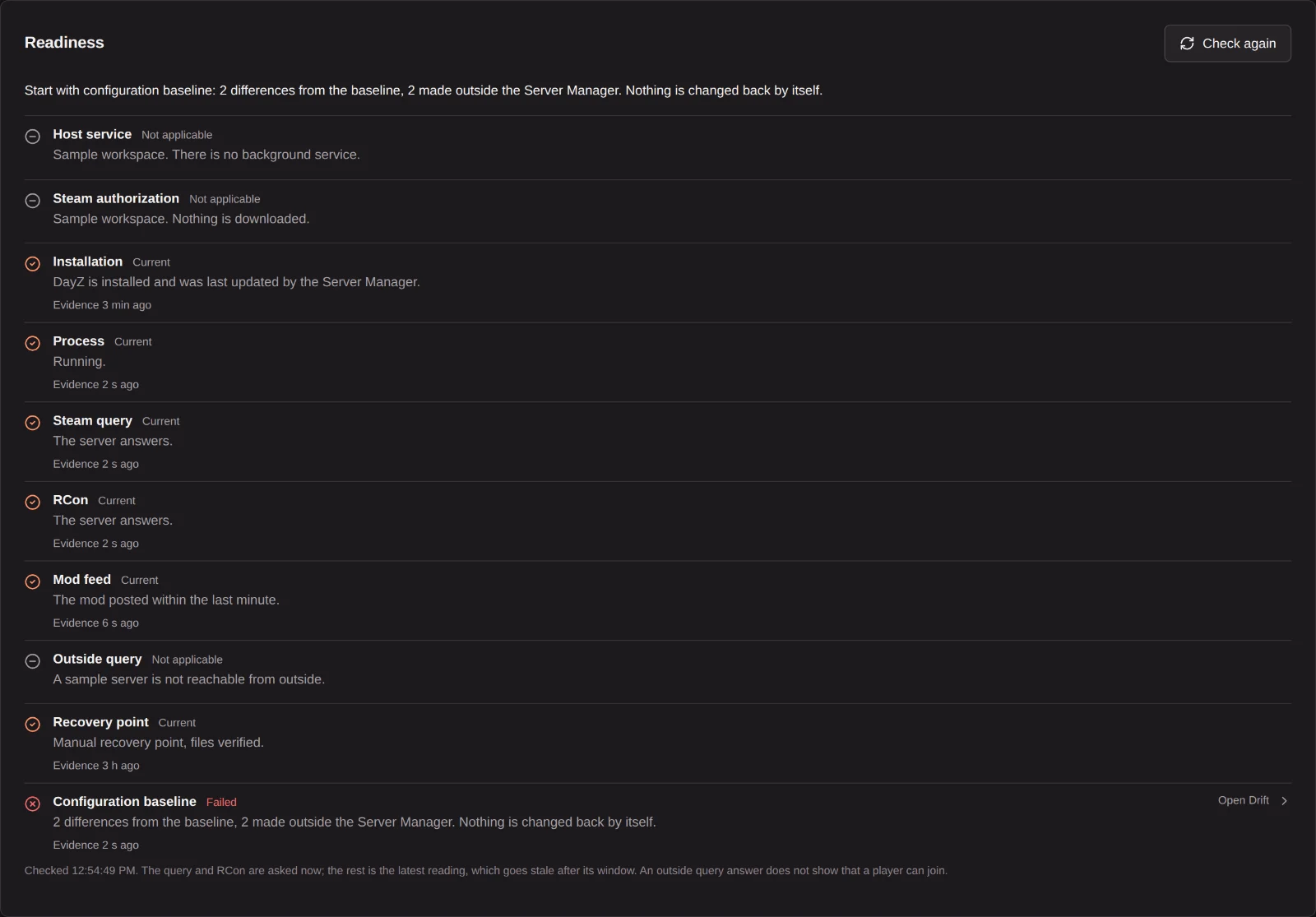
The Readiness card on each server lists every setup step with its own state and when it was checked: the service, Steam, the installation, the process, the Steam query, RCon, the mod feed, a check from outside, a verified recovery point and the configuration baseline. It never adds them up into one "healthy" answer, and it says which step to look at first.
Approve a server's configuration as a baseline, and Drift lists every file and setting that changed since, including edits made outside the Server Manager. Drift is reported, never reverted.
Can players reach you?
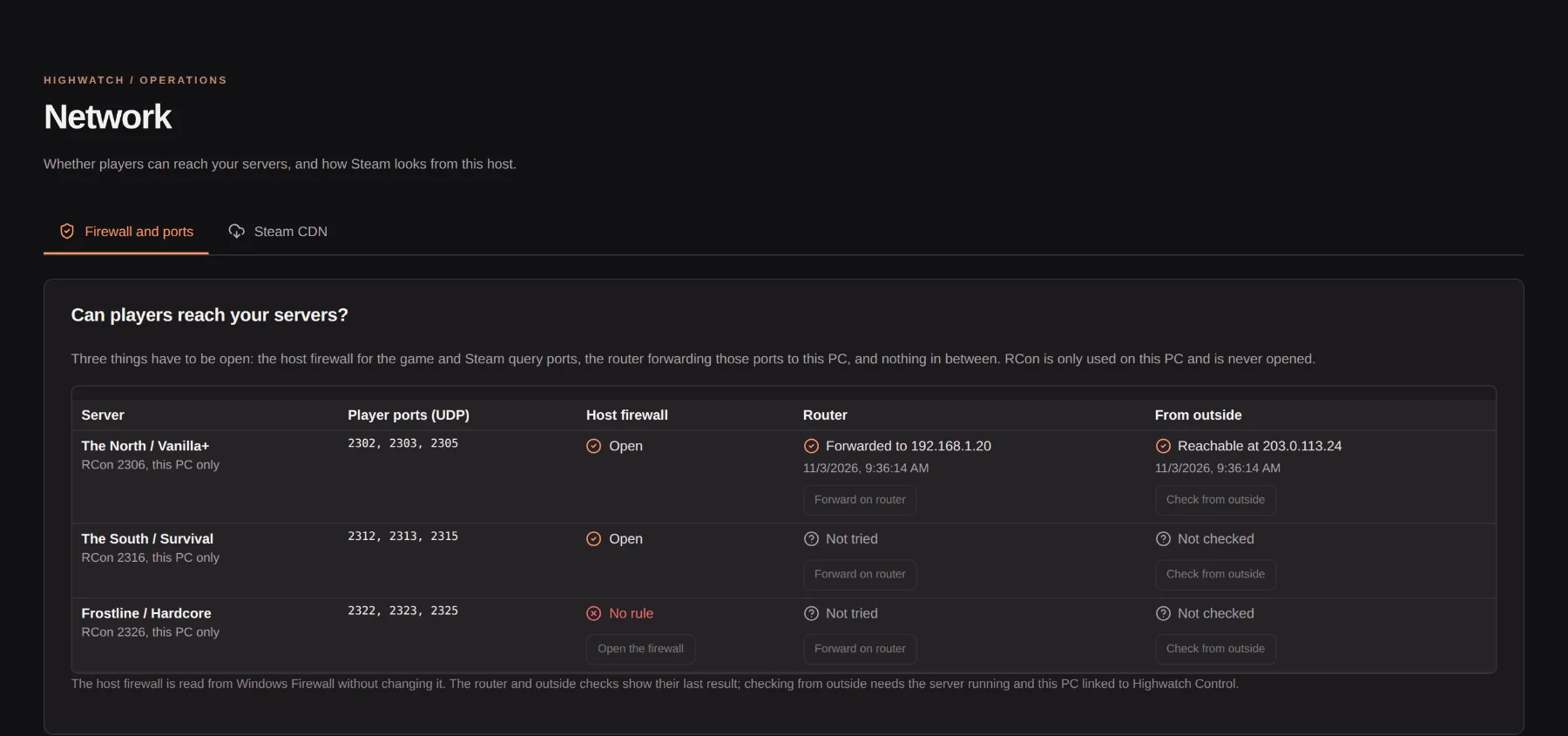
For each server, the Network page checks the Windows Firewall rule, the router forward and reachability from the internet, each with the button that fixes it. RCon is only used on the PC and never opened. A Steam CDN view shows how quickly Steam's content servers answer when downloads are slow.
Give staff one server, not the host
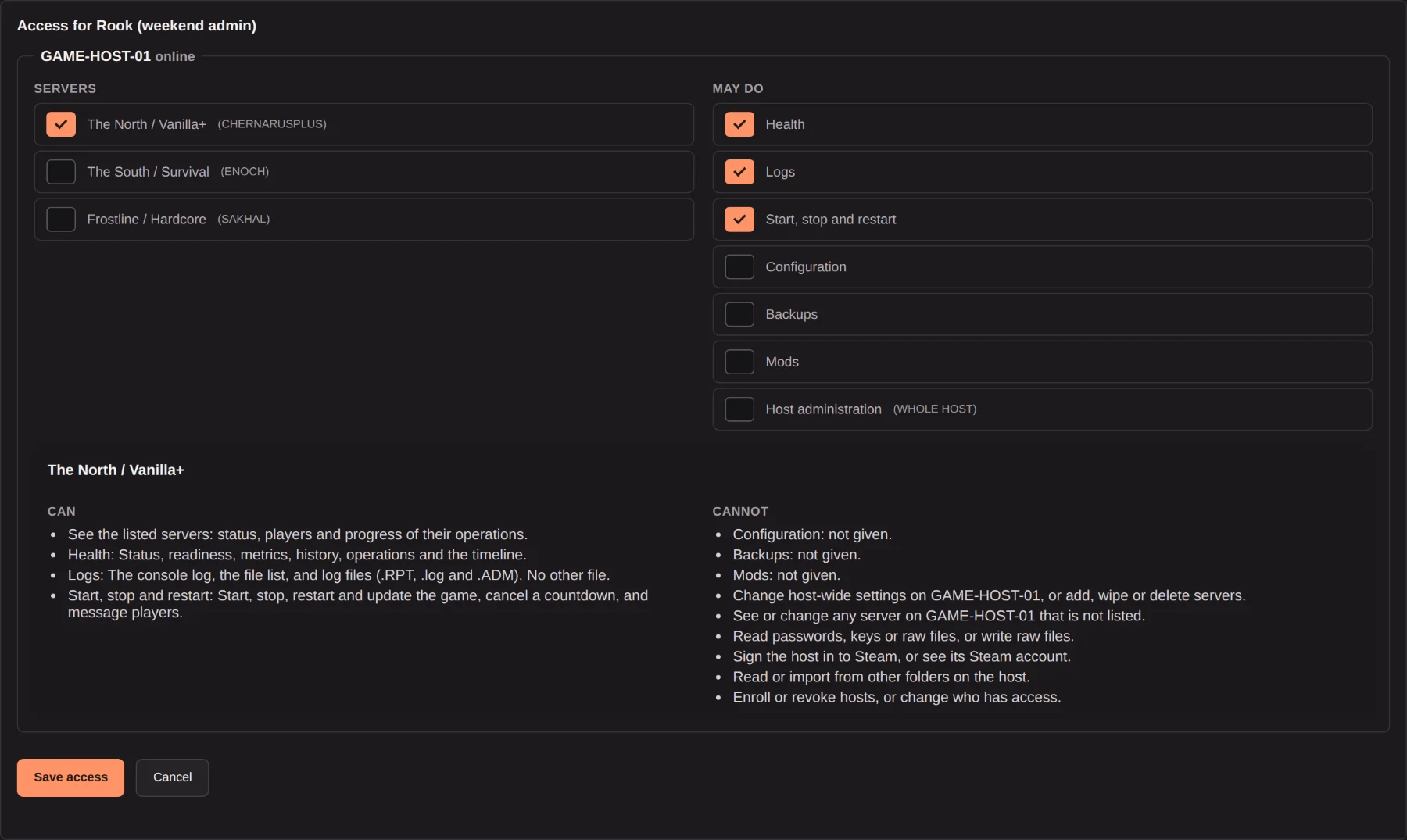
Give a staff member chosen servers and what they may do there: read health and logs, start and restart, change configuration, handle backups or mods. They sign in with a single-use invite code, never your access key. Highwatch Control checks every command and every result, and the host checks again. Passwords, keys, raw files and the Steam sign-in are never handed over.
Watched while you are away
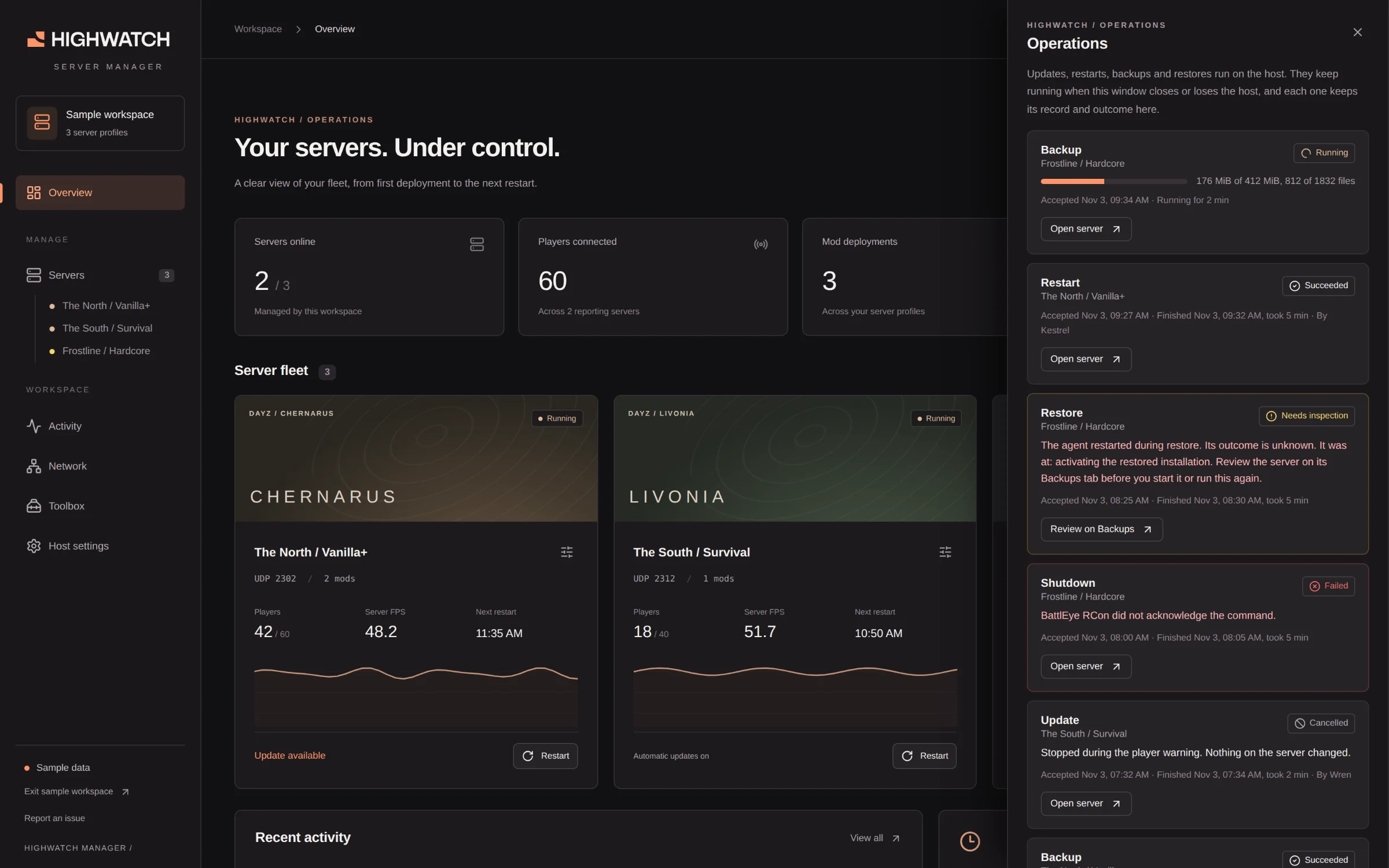
- Operations lists every update, restart, backup and restore with its progress and result, and keeps its record if the app or the service restarts.
- Metrics draws what the @Highwatch mod reports, and says which link is broken when readings stop.
- Webhooks send crashes, failed backups, low disk space and updates to Discord or your own service, signed, with retries and a delivery log. An incident nobody acknowledges in time is escalated once to the channel you choose.
- A disk forecast from free space measured every fifteen minutes says when the drive fills, and lists what to clean first.
- Restarts, updates, mod changes, restores and crashes go to Highwatch, so the Server Desk marks them on its performance charts. A support bundle gathers one incident, redacted, for you to review and save.
- A PIN lock, export and import for moving to another PC, and management of other game PCs through Highwatch Control.
- Survives a power cut: every file it replaces is flushed to disk first, the last good state is kept, and if both are lost the servers are rebuilt from their own folders.
- Priority for the shop: on DayZ, it writes the priority queue places the shop delivers, never touching lines you wrote yourself.
What you need
- A Windows 10 or 11 PC (64-bit) with about 10 GB free for each server.
- For DayZ, a Steam account that owns DayZ, and the Steam Mobile App for the QR sign-in. Rust downloads without a Steam account.
- Your Highwatch access key. The Server Manager is in early access and free during it: ask for a key in the Discord.
Download it from the Server Manager releases page. It updates itself after that. The installer is not signed yet: on the Windows warning, choose More info, then Run anyway. Release notes are on the Server Manager changelog, and every feature has a guide with screenshots in #manager-guides on the Discord.
Read next

Get Highwatch while it is free.
Early access is free. Join the Discord, open a ticket, and your access key arrives in the ticket.
Join early access